Guide · Video
Adding music, logo & design name
The free Video Editor joins up to five clips and puts your brand on them. No credits.
Generated videos carry no watermark or logo. The editor is where your brand goes on. It runs on a computer only; on a phone it asks you to switch to a desktop.
Open the editor
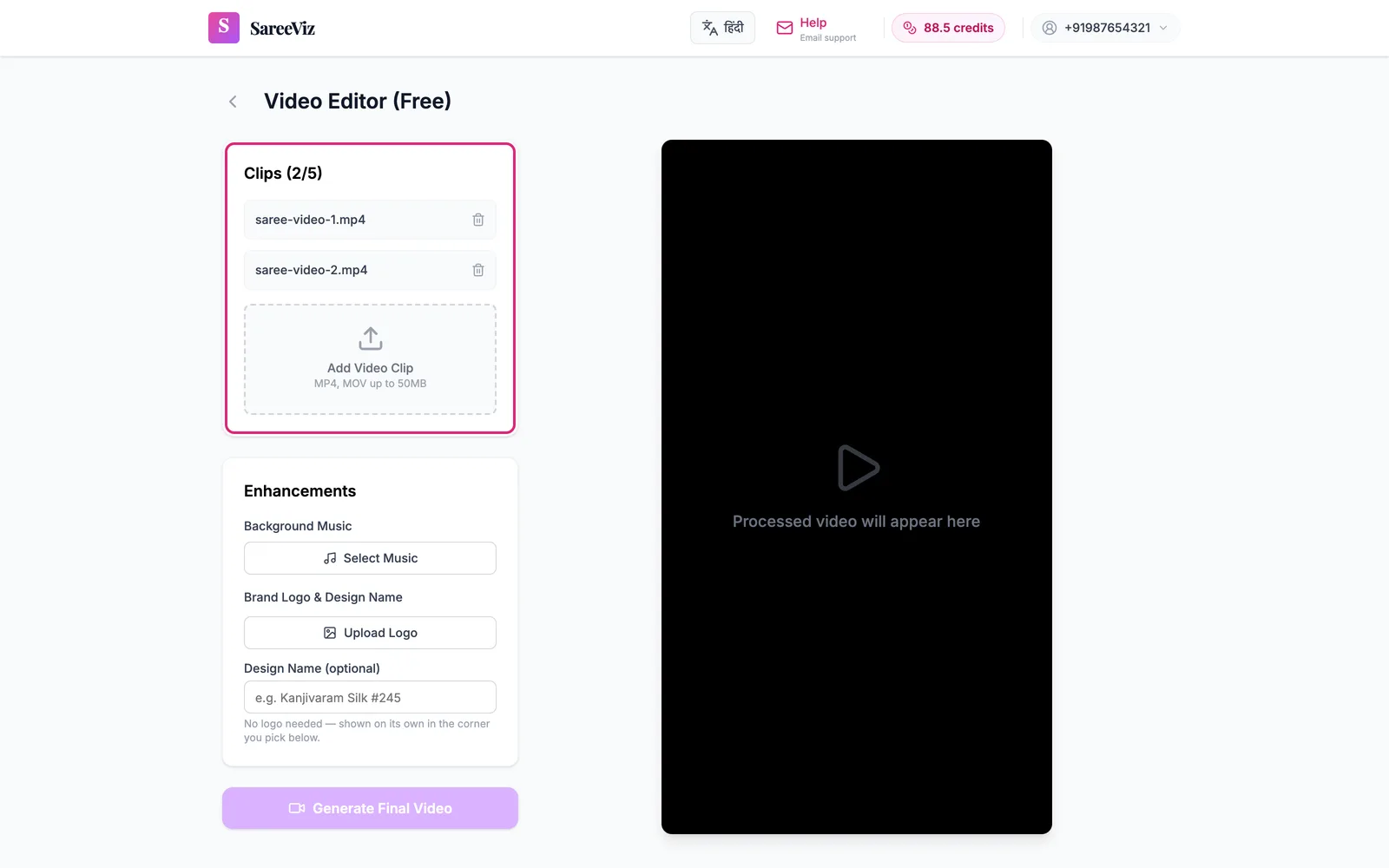
On the Video tab, scroll below the Generate Video button and tap Add Music and Logo (Free).
Add your clips
Up to 5 clips, MP4 or MOV, 50 MB each. They play in the order shown. Videos downloaded from SareeViz drop straight in.
Background music
Tap Select Music and pick any audio file. It loops to cover the whole video and stops when the video ends.
Logo and design name
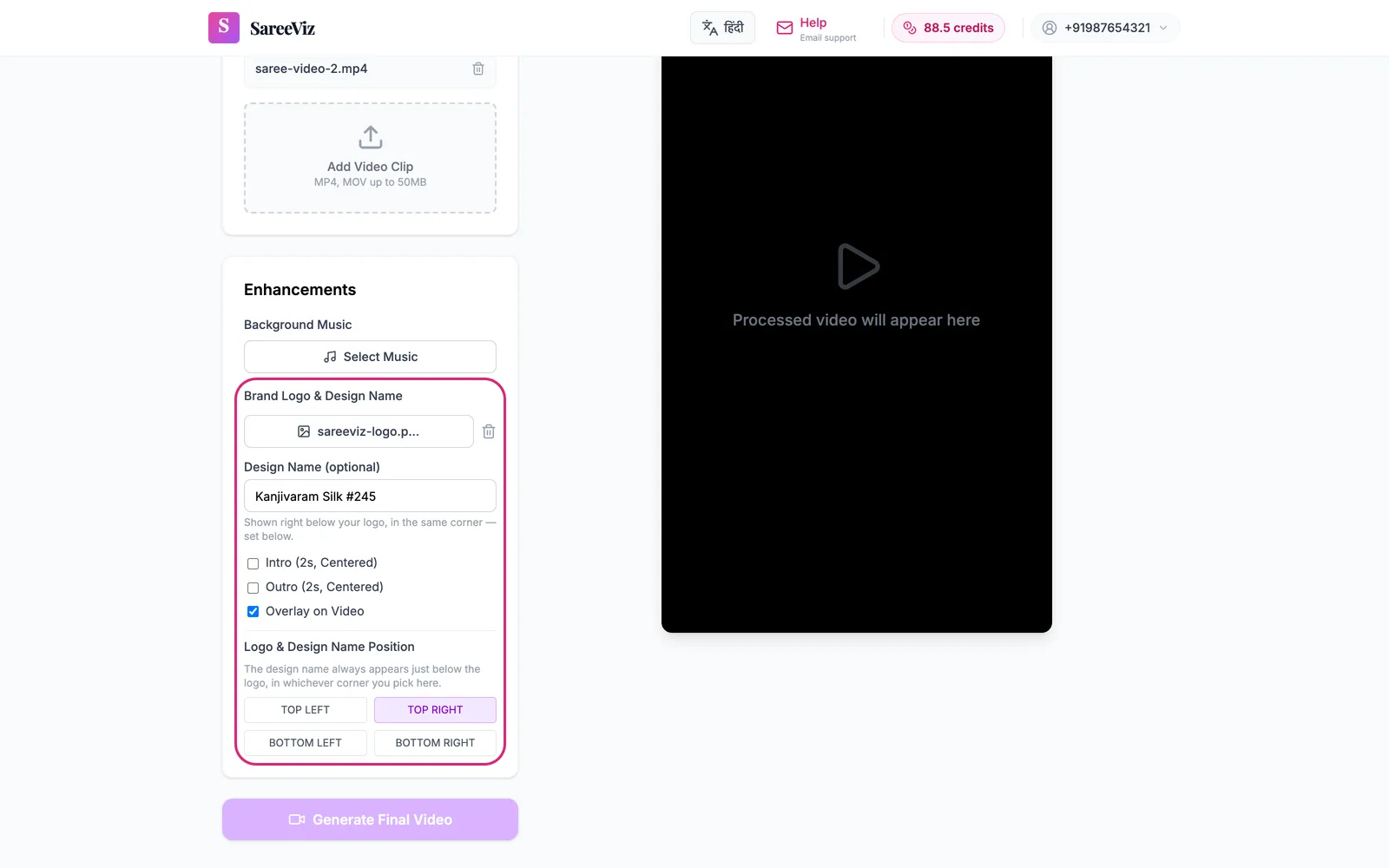
- Upload Logo: any image file
- Design Name: up to 60 characters, e.g. “Kanjivaram Silk #245”. Shown below the logo, or on its own if there is no logo. Buyers quote it back when ordering.
- Intro and Outro: two seconds of your logo, centred, before and after the clips
- Overlay on Video: on by default; keeps the logo in a corner through the whole video. Pick the corner below it.
Generate Final Video
Tap Generate Final Video, wait for the preview, then Download Video. The output is always 9:16, the reel and status shape.
Looking for the editor on your phone
It needs a computer. Generate videos on the phone if you like, then brand them from a laptop. The videos are in History on every device.