Guide · Video
Video guide
Turn one finished model photo into a short catalogue video, for reels, WhatsApp status and your listing page.
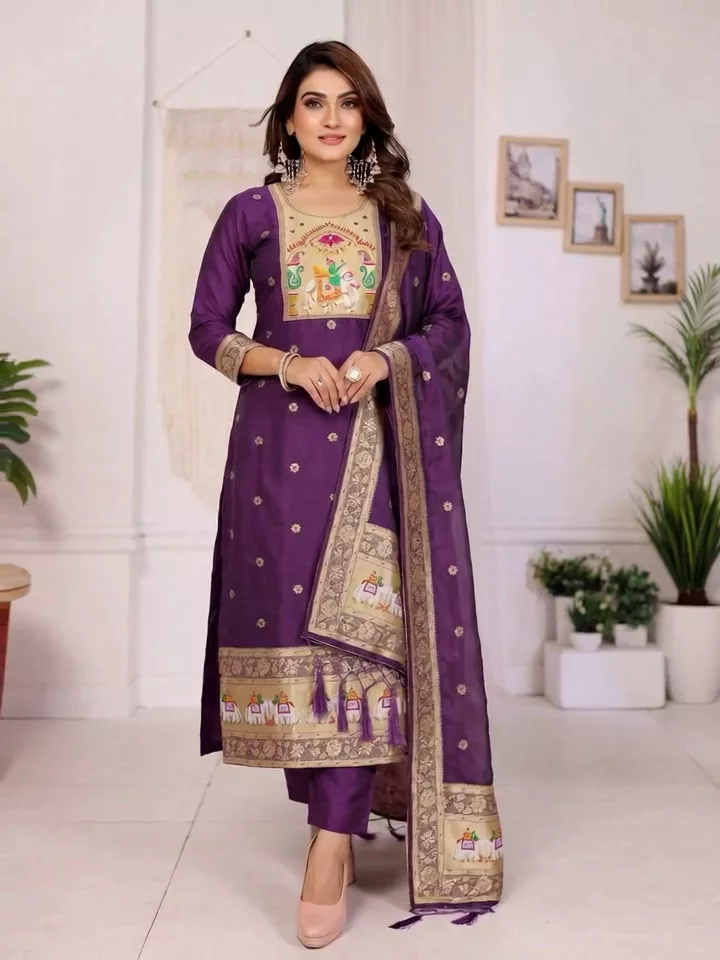
What you need
- One finished photo of the garment or jewelry on a model. A photo from your SareeViz photoshoot works best
- Both sides at least 300 pixels, and no taller or wider than 2.5:1. The app tells you if a photo doesn’t qualify
- Credits: duration × quality, shown on the button before you tap. A 15-second Standard video is 15 credits.
Switch to Video
At the top of the dashboard, tap Video (next to Image and Combine). The whole left column changes to the video form.
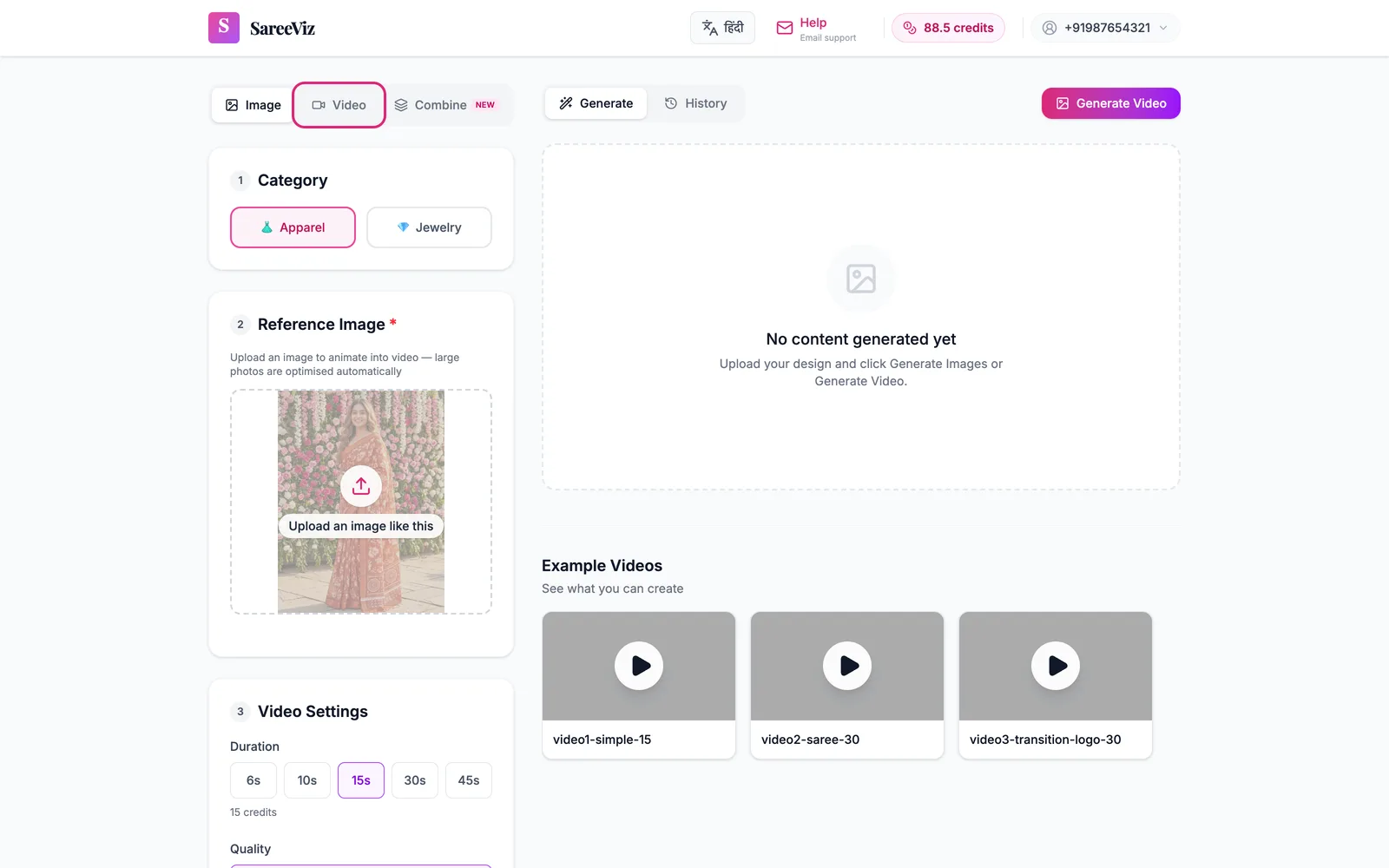
Choose the category
Apparel or Jewelry. This decides the kind of camera work the AI plans: apparel gets walks, turns and fabric in motion; jewelry gets slow orbits, sparkle and close-ups on the piece.
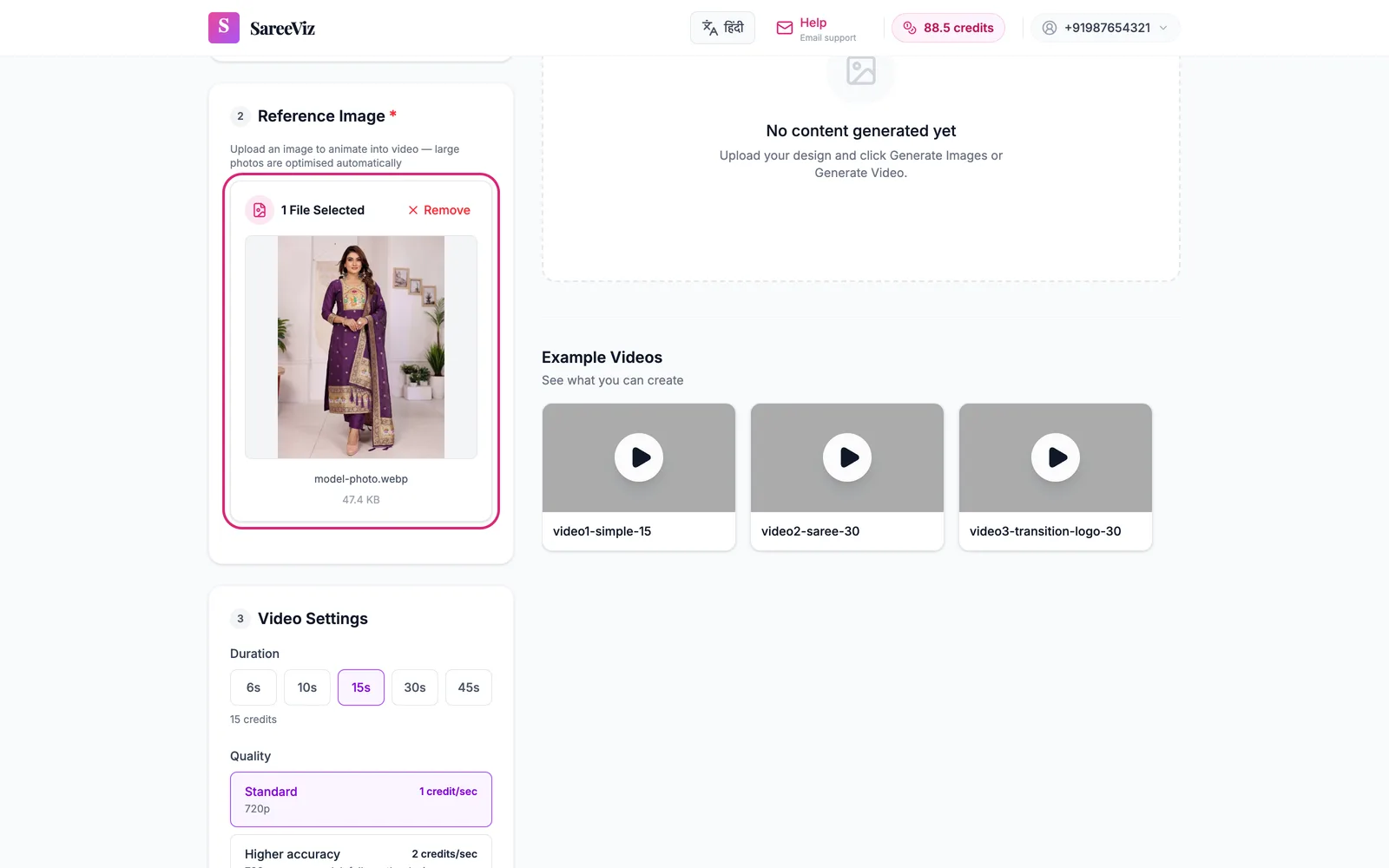
Upload the reference image
One photo. This is the first frame of your video. The AI animates this exact image rather than starting from scratch. So what’s in the photo decides what happens in the video:
- Model photo: the model moves, the camera moves around her
- Flat or hanging garment: the camera glides over the fabric. No model is added.
- Jewelry on a bust: a slow orbit that catches the sparkle
- Two or more people: a wide shot first, then the camera moves in
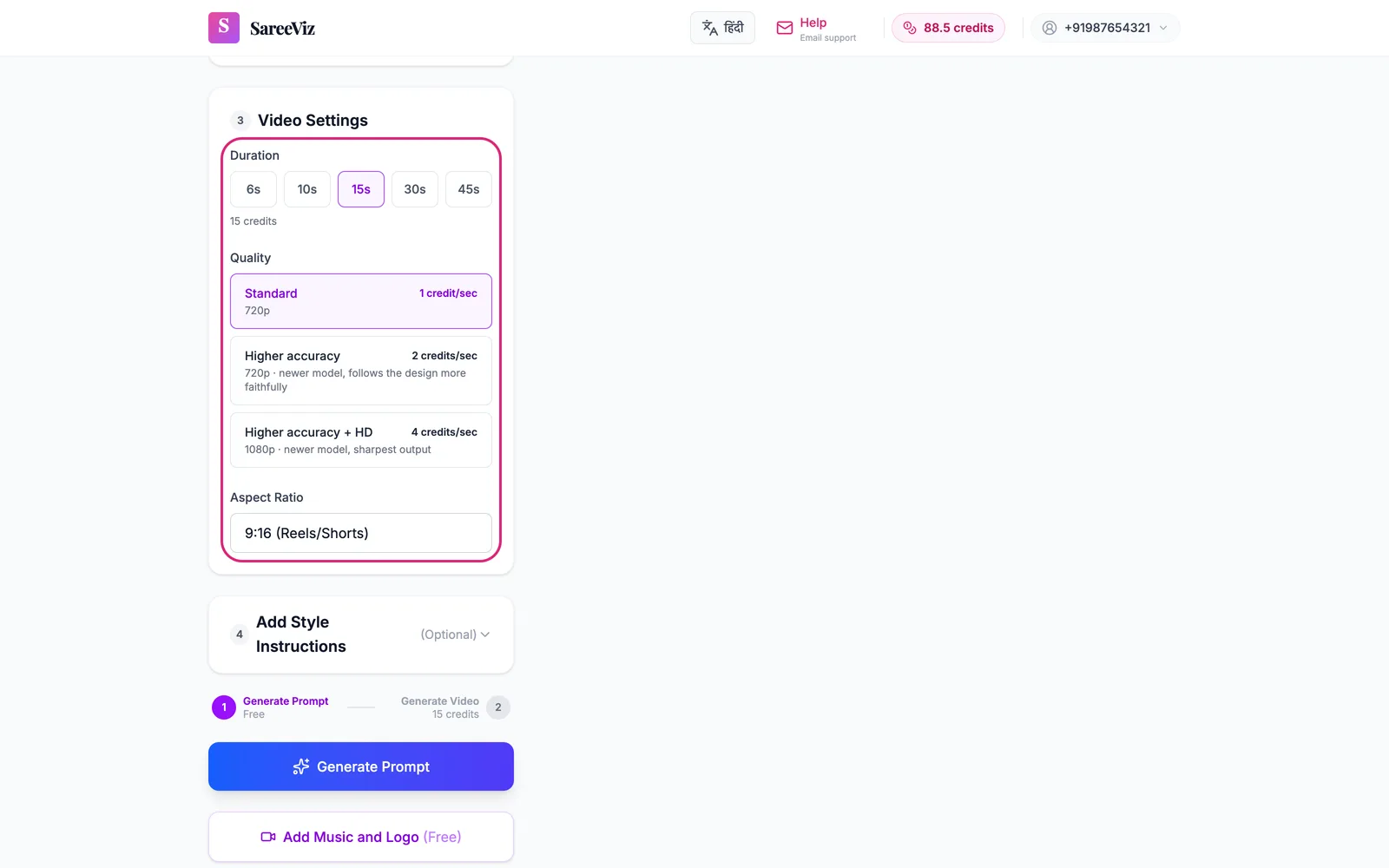
Video settings
- Duration: 6, 10, 15, 30 or 45 seconds. Up to 15 seconds is one continuous clip. 30 and 45 are made of 15-second segments, each generated from your same reference image and joined. The design stays consistent, but expect a cut between segments.
- Quality: Standard (720p, 1 credit/sec), Higher accuracy (720p, 2 credits/sec, follows the design more faithfully) or Higher accuracy + HD (1080p, 4 credits/sec). Start on Standard; move up if the design drifts.
- Aspect ratio: 9:16 (the default) for reels, shorts and WhatsApp status; 3:4 portrait; 2:3 tall portrait; 1:1 square for the Instagram feed; 4:3 landscape; 3:2 wide; 16:9 for YouTube.
Style instructionsoptional
One or two lines: the movement, the light, the mood, and what to avoid. Use example prompt fills in a good starting point: a slow walk in daylight, a graceful turn, soft music, no quick movements.
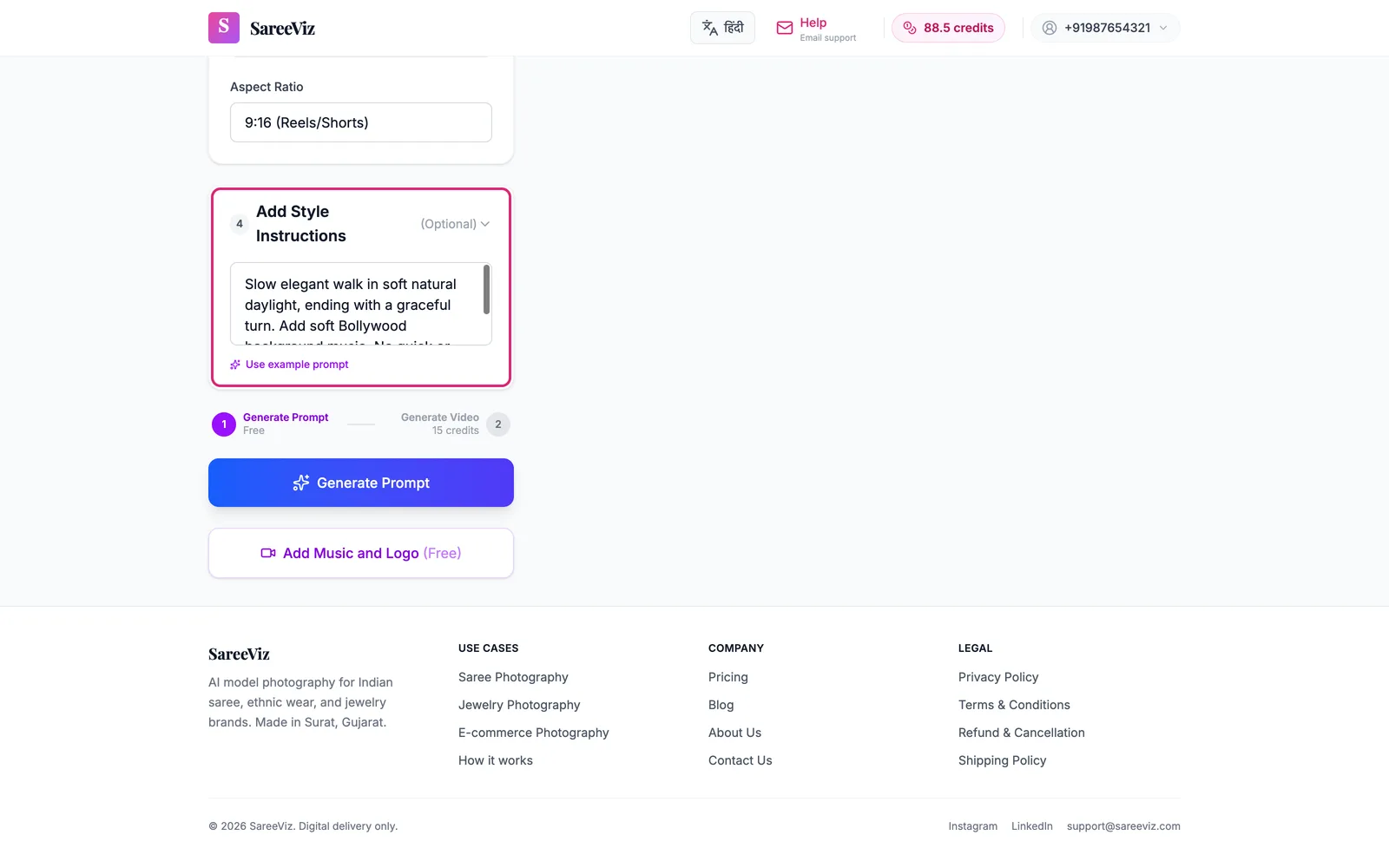
Generate Prompt, which is free
Tap Generate Prompt. The AI studies your image and writes a shot-by-shot plan: an opening shot, a movement, and a close-up at the end. For 30 and 45 seconds you get one plan per segment. Read it, because this plan is exactly what the video will do. Edit any line, or tap Regenerate Prompts for a fresh plan. Nothing here costs credits.
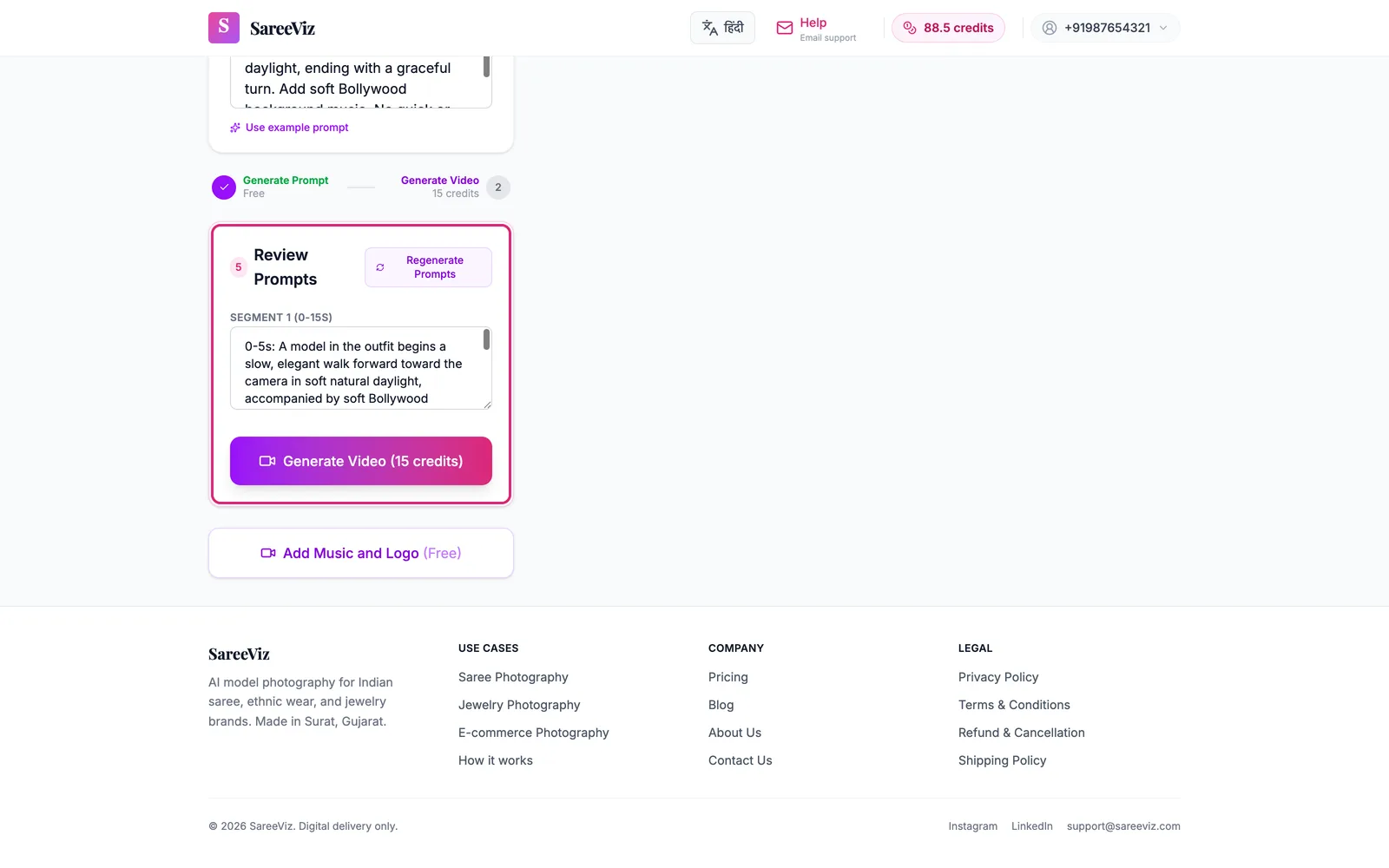
Generate Video
The button shows the credit cost. Videos take 2 to 3 minutes; stay on the page, or come back to History later. You’re charged only when the video succeeds. Tap Download Video to save the MP4. On an iPhone the share sheet opens, so you can send it straight to WhatsApp.
Three mistakes that ruin videos
Uploading the flat design photo and expecting a model
The video animates what is in the image. A flat saree photo gives you a camera gliding over fabric, and no model appears. Generate the model photo on the Image tab first, then bring it here.
A shopping list in the style instructions
Every line you write is enforced. Five instructions squeezed into 15 seconds means fast, unnatural movement, and fast movement is where bodies warp. One movement, one light, one mood.
Asking for what the photo can't show
“Show the back of the blouse” when the photo shows the front forces the AI to invent the back, and invented parts are where designs drift. Keep the request inside the frame.